
Introduction
Biometric authentication is an easy-to-use, accurate technology that increases security options to safeguard the privacy of employee information. Damstra Technology TWMS Terminals are equipped with the finger scanning functionality used as a form of identification and access control. This ensures an individual’s attendance and eliminates the possibility of someone logging in for another.
When a contractor/employee logs onto a TWMS Terminal for the first time, the company supervisor will need to set up the finger scanning function following the steps below:
Enrolling Finger Scans
1. On the TWMS terminal touch screen, select the Manage icon on the top of the screen.
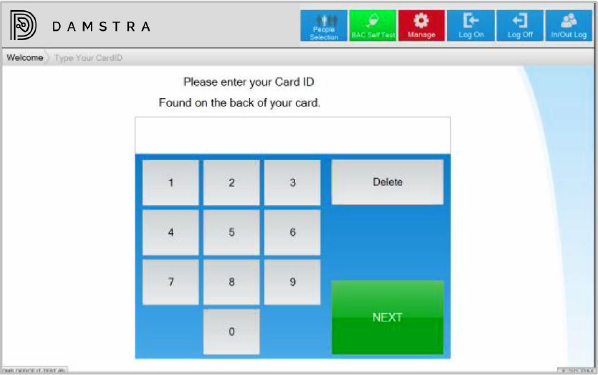
2. Select your name from the Manager’s dropdown list, then enter your personal pin code.
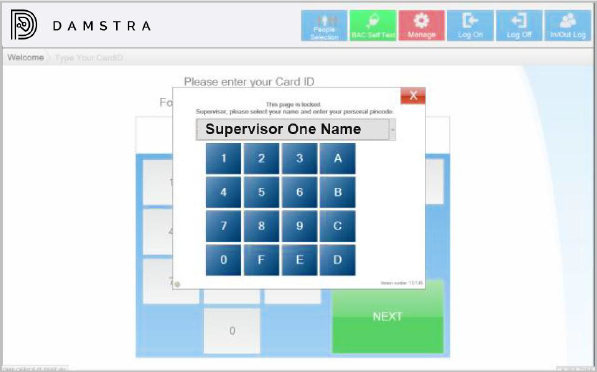
3. Once the Supervisor password is correctly entered, the screen will show multiple options.
4. Select Enrol Person on the Options screen.
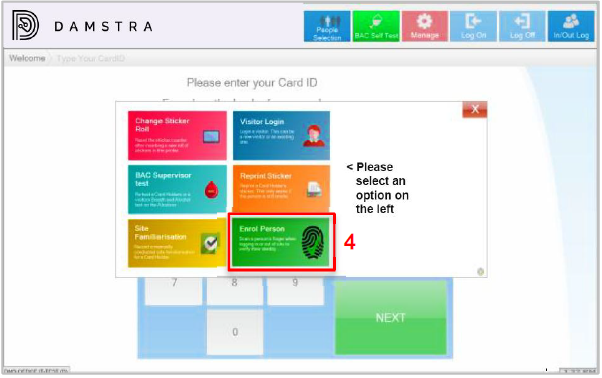
5. Select the person you wish to enrol by entering their Damstra Access Card number.

6. A confirmation screen will show. Select Yes to proceed to finger scanning.
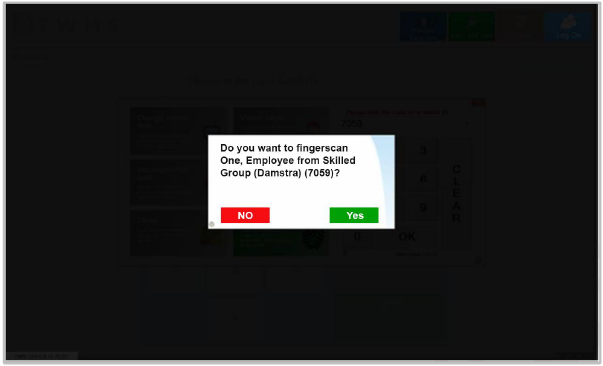
7. On the touch screen, select the finger you wish to scan.
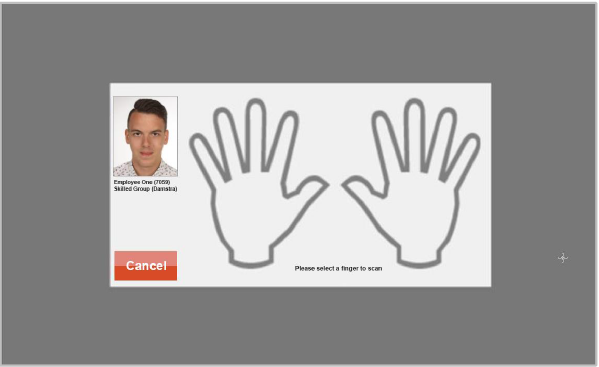
8. A blue circle around the finger that has been selected will be visible.
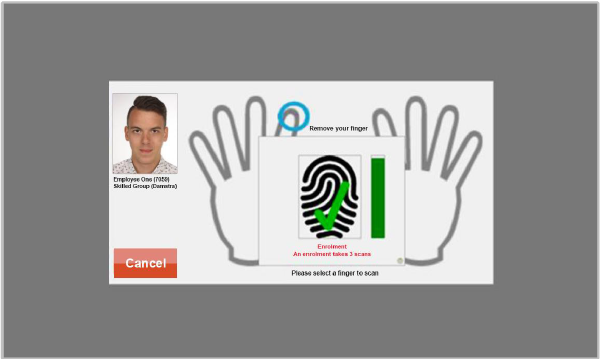
9. You will be asked to scan the selected finger three (3) times.
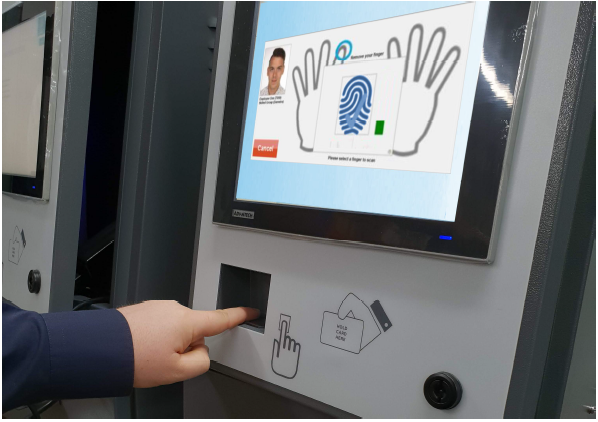
10. If the scanning process has been successful, you will be asked if you would like to scan any
other fingers. We recommend more than one finger is scanned, in case you may have a cut or
anything that may stop it being used in future.
11. If you choose not to, it will then ask if you would like to scan anyone else.
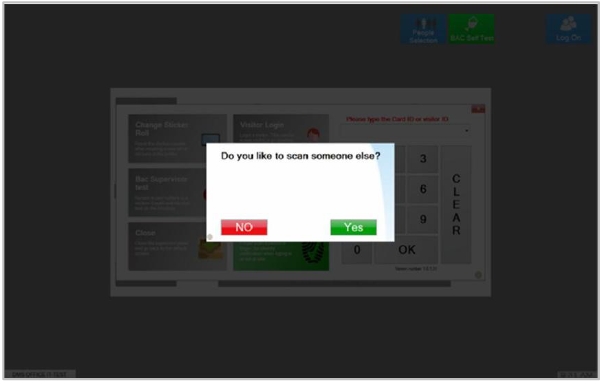
12. Once the finger scan and enrolment has been successfully completed, select Close on the Options screen.
Comments
0 comments
Please sign in to leave a comment.