
How to Watch a Lesson
Watch a lesson on your computer or through your convenient phone.
How to watch a lesson via a web browser
- Login to your account.
- Hover your mouse through the lesson thumbnail, then click
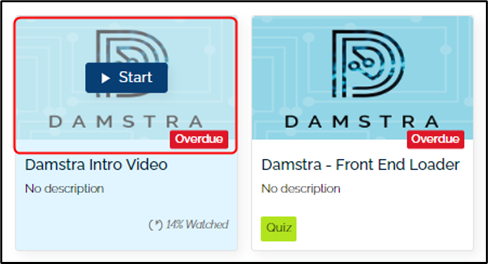
- The lesson will play, enjoy watching.

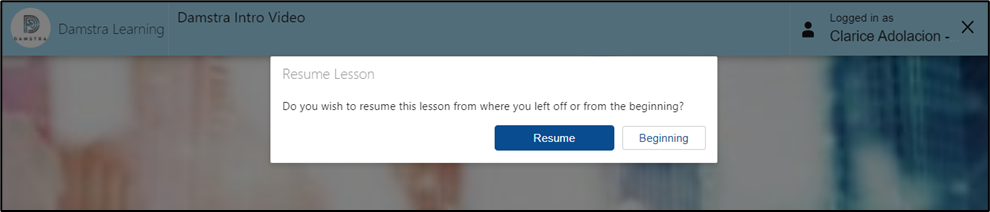
- You may exit the lesson anytime and resume where you left.
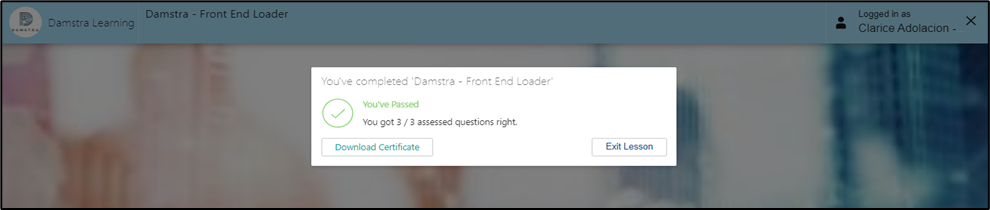
- Click at the end of the lesson to have a pdf copy of your completion certificate.
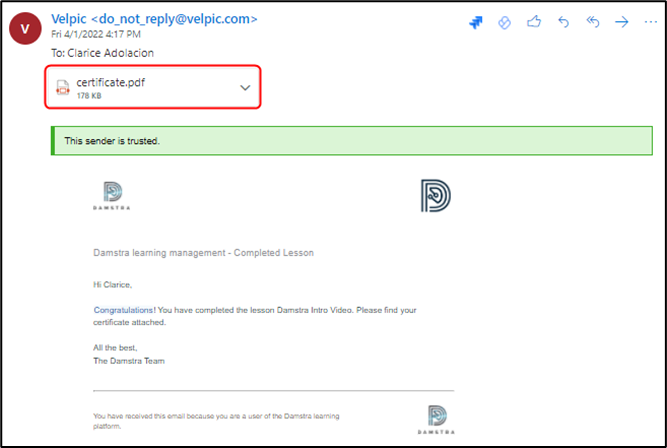
Note: A copy of the completion certificate will be sent to your e-mail.
How to watch a lesson via the mobile app
Make sure you download the Damstra Learner app from your Play Store or App Store
- Login to your account. Make sure that you are in the correct organisation.
To change organisation, tap the arrowhead pointing to the left on the login page of your phone app.
The next page will ask for the organisation. This is the domain name of your Damstra Learning instance.
If your Damstra Learning address is https://damstratechnology-240.velpic.net/, your organisation is damstratechnology-240. This needs to be entered on the field highlighted below.
2. Click any of the lessons scheduled.
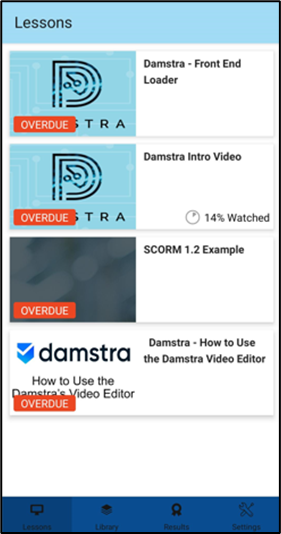
- The lesson will play, enjoy watching.

- You may exit the lesson anytime and resume where you left.
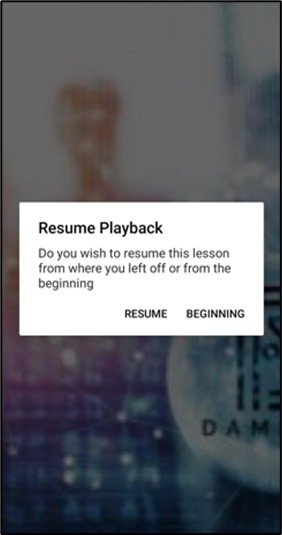
Note: A copy of completion certificate will be sent to your e-mail, there is no option to download it in the Velpic Learn mobile app.
Comments
0 comments
Please sign in to leave a comment.