
How to Reset Password
Do the self-service reset password in the Velpic Learn mobile app or web browser to retrieve your login credentials.
How to Reset Password via web browser
- Go to https://(organisation).velpic.net and you will land to a page like the below
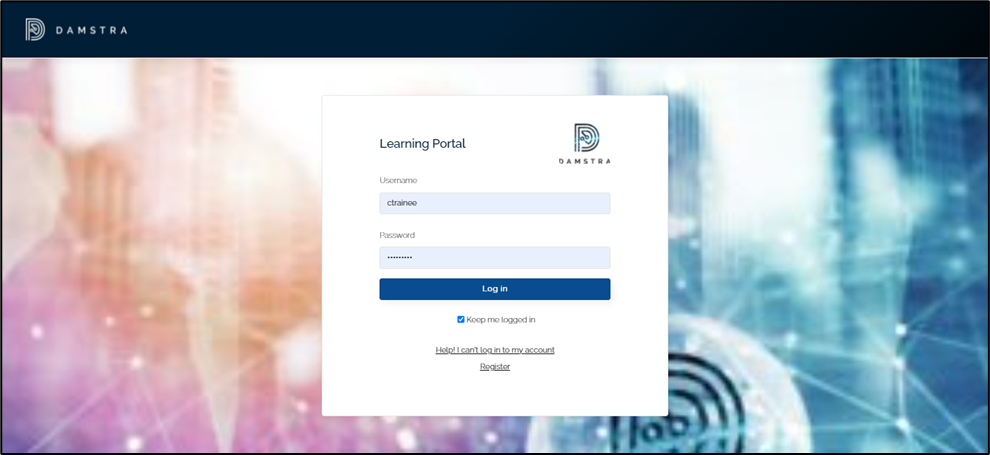
- Click
 and you will be directed to the page below
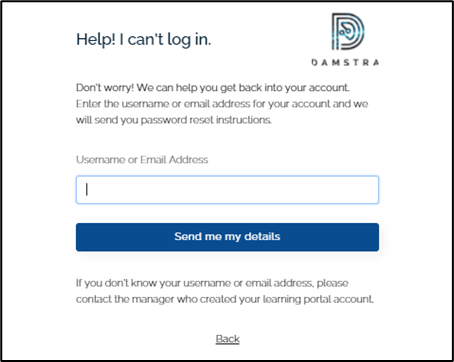
- Enter your username or e-mail address on the profile. If you are completing lessons for your Damstra Workforce Management Booking/Registration/Induction, your username is your Damstra ID.
- Check the email from do_not_reply@velpic.com
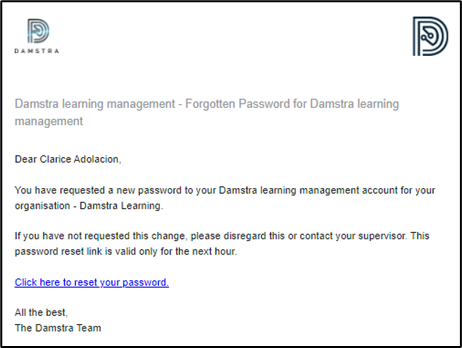
- Click this hyperlink
 to get to the Reset Password page
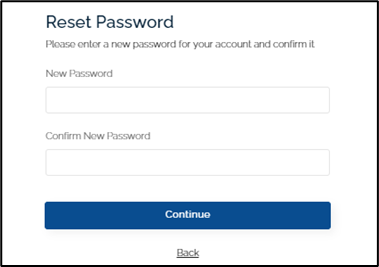
Note: Passwords need to have at least 10 characters, with uppercase letters, lowercase letters, number, and special characters.
How to Reset Password via mobile app
- Open the Velpic Learn app.
- Enter your organisation’s instance, then click
 .
.
The organisation is the domain name of your Damstra Learning instance. If your Damstra Learning address is https://damstratechnology-240.velpic.net/, your organisation is damstratechnology-240. This needs to be entered in the myorganisation field below.
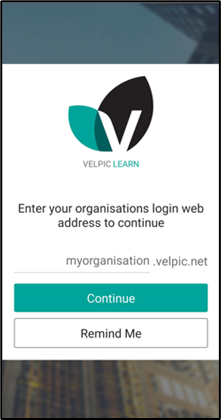
- You will land to the screen below.
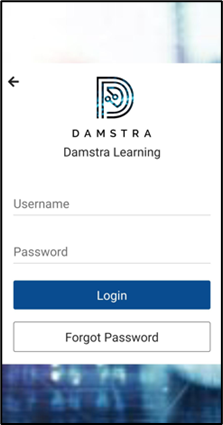
- Click to get to the screen below.
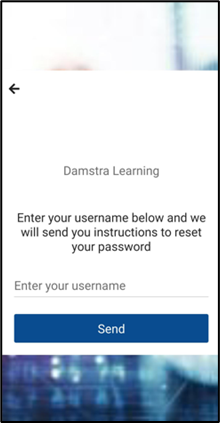
- Enter your username and wait for the from do_not_reply@velpic.com
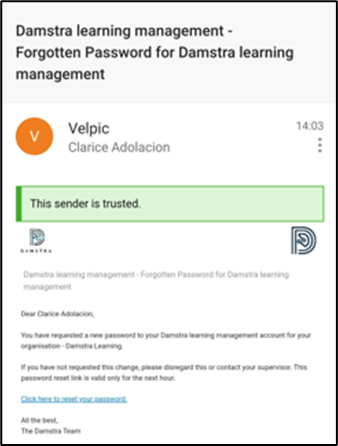
- Click this hyperlink to get to the Reset Password page
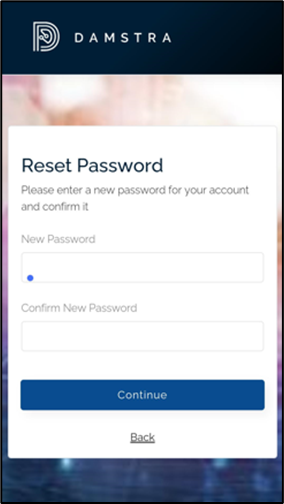
Note: Passwords need to have at least 10 characters, with uppercase letters, lowercase letters, number, and special characters.
Comments
0 comments
Please sign in to leave a comment.