
Alcolizer – “Off-Button” Reset
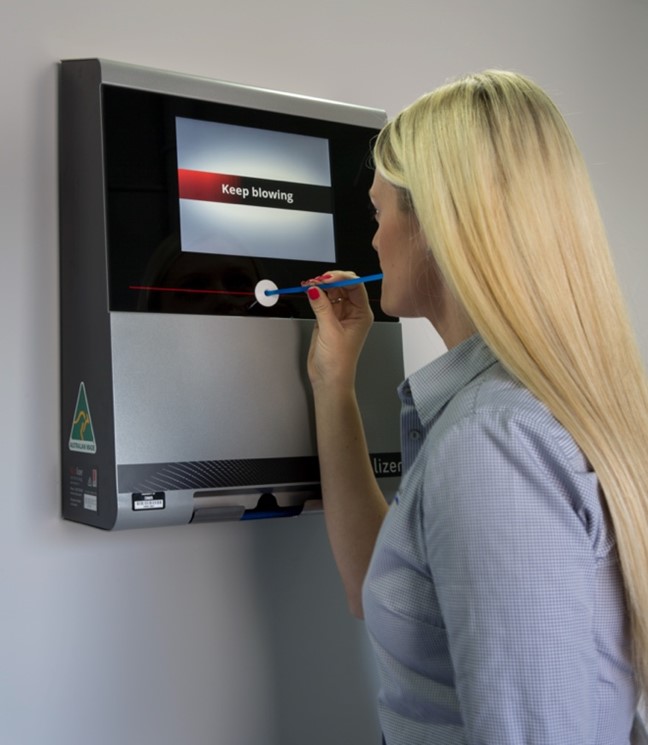
If an Alcolizer experiences any issue or is not scrolling its on-screen messages every 10 seconds, is not displaying "Self Test" during an anonymous BAC Self Test or displaying any user's Name & ID Number during login, then it may require an “Off-Button” reset.
NOTE: Disconnecting mains power, or switching mains power off, is not the correct reset procedure, and often this will not have the desired outcome. Please ensure that the steps below are followed.
1 - Unlock & open the Alcolizer.
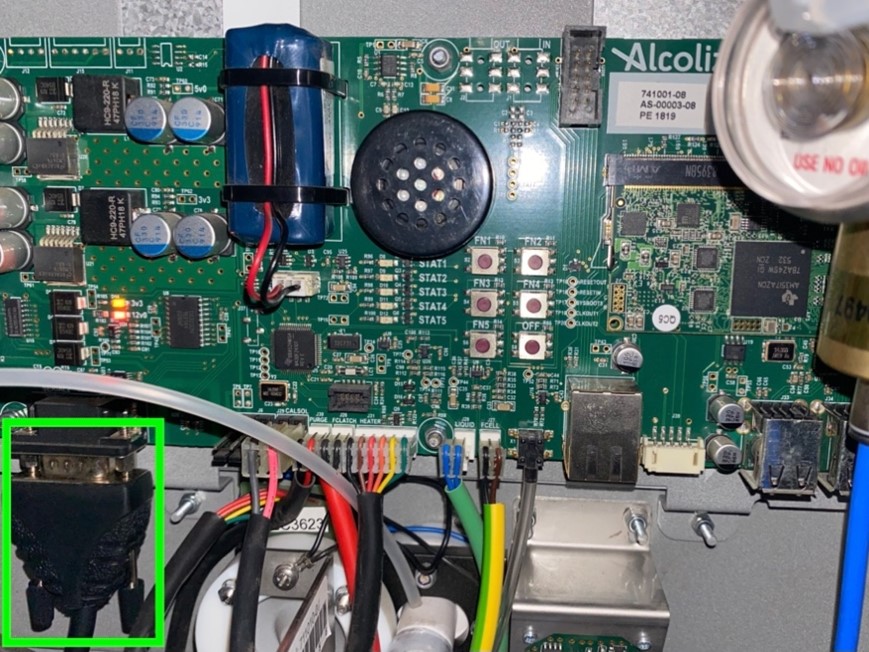
2 - Ensure that the COM cable is securely connected (pictured below) -
3 - Check that the gas bottle has been opened, by turning the value towards you -
(A few turns, or simply checking the position is fine, the valve does not require multiple turns to be open).
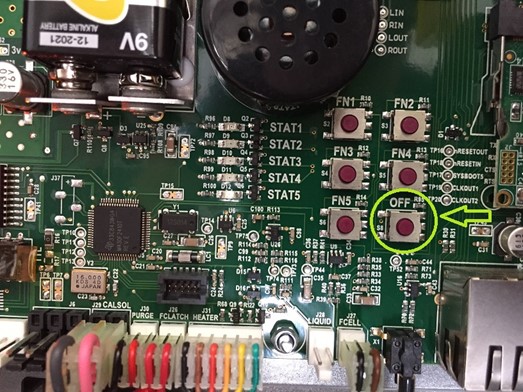
4 - Locate this group of 6 small buttons, then press the one at the bottom right of the group, marked as " OFF " (pictured below) -
The device should begin to shut down. This can be confirmed via the display panel on the front, indicating 3 "loading" style circles, which will fill as the shutdown progresses.
NOTE: Please leave the Alcolizer plugged in & switched on at mains power, during this.
(4a - If the device does not begin to shut down after pressing the button once, hold the "OFF" button down instead, for up to 1 minute.
4b - If holding the "OFF" button has no impact either, then please power the device off / or unplug it at the mains connection, wait 5 minutes, then plug it back in).
5 - Once the display has switched off, & is black/blank, wait 5 minutes.
NOTE: Please leave the Alcolizer plugged in & switched on at mains power, during this.
6 - Press this same "OFF" button again, to begin the start-up process.
7 - Once the Alcolizer has finished starting up, it will be ready for use. (An automated calibration may take place).
Alcolizer – Status Message
If an Alcolizer continues to display an error, or an “Out Of Order” message, after completing the above Reset procedure, then please follow the steps below to determine what the problem may be, so our Service Team can help to resolve it asap.
1 - Unlock & open the Alcolizer.
2 - Locate the group of 6 small buttons, then press the one at the top left of the group, marked as " FN1 "
(pictured below) –
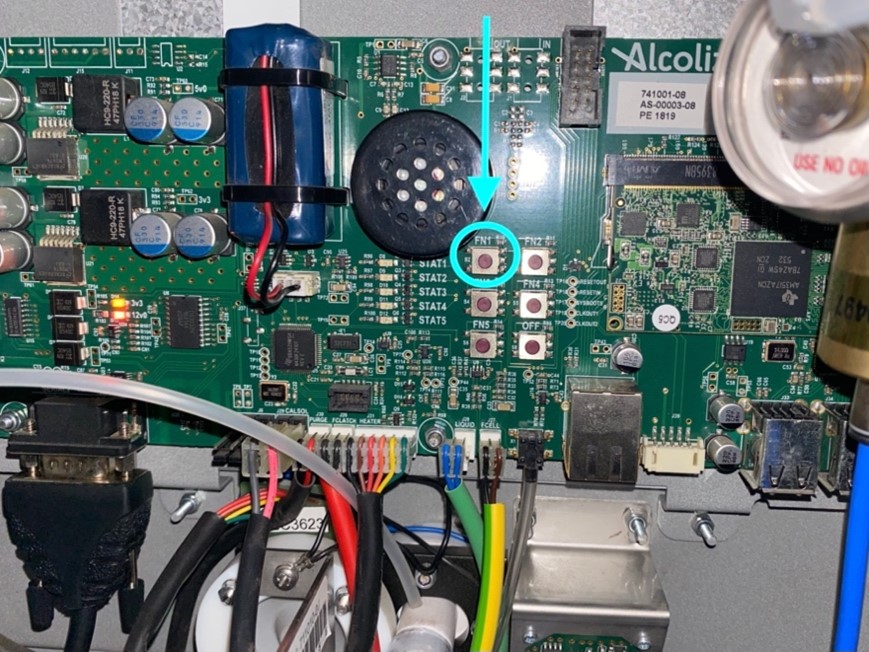
3 - Once pressed, check the Status messages on the right-hand side of the Alcolizer screen (pictured below) -
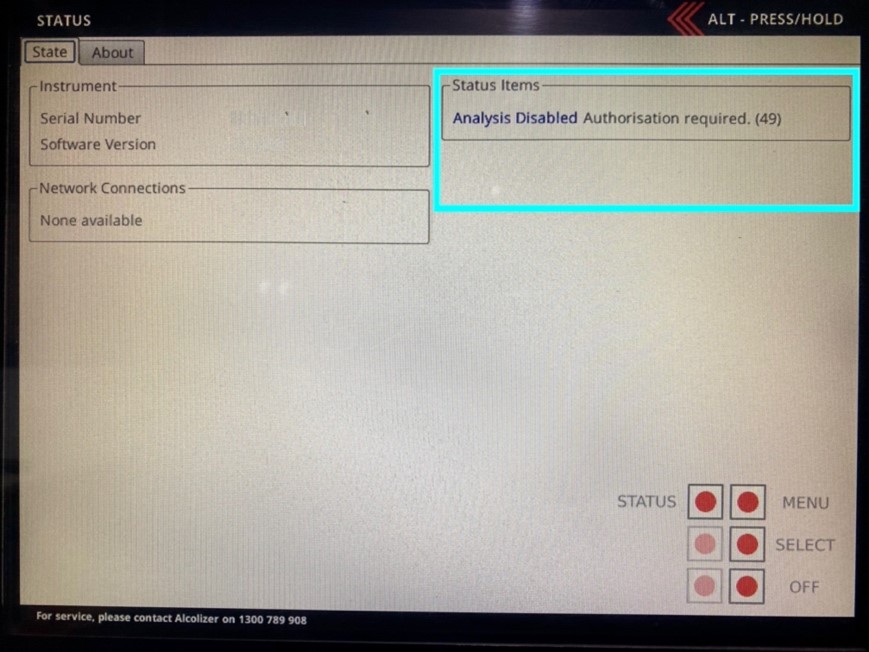
4 - Note down these Status messages, or send a photo of the screen to service@damstratechnology.com
5 - Pressing “FN1” two more times will exit this menu & return the Alcolizer back to its default screen again.

Comments
0 comments
Please sign in to leave a comment.