
Damstra Terminal Models:
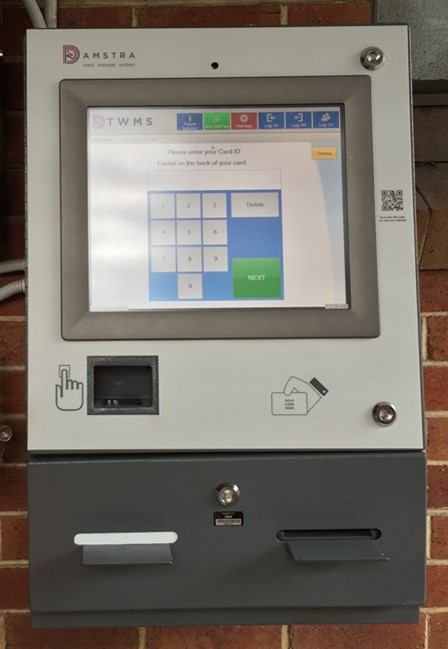
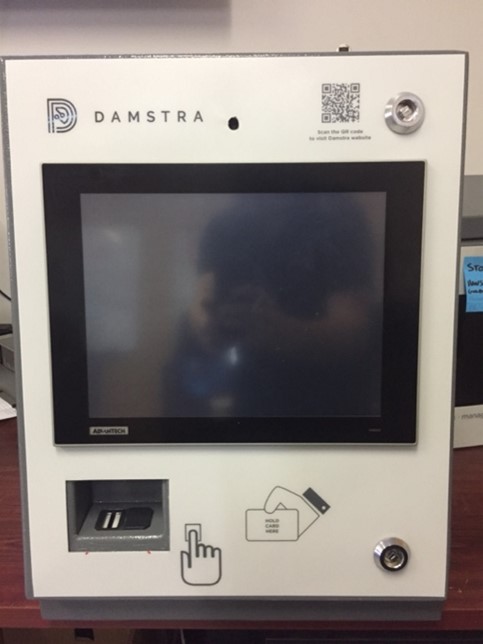
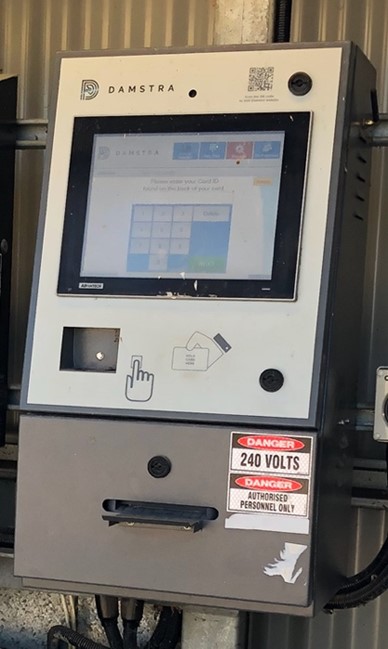
| DT-MK1 (Large 17” Screen) |
DT-MK2 (without Printer) |
DT-MK2P (with Printer) |
 |
 |
 |
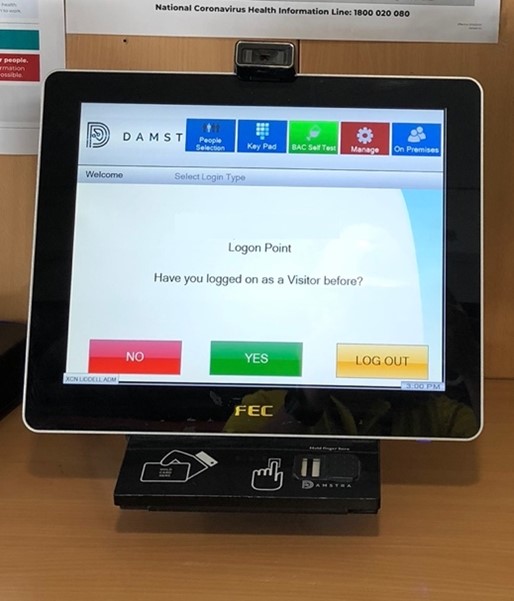
| DT-VTMK2 (Visitor Terminal) |
DT-PTMK2 (Portable Terminal) |
DT-ACMK2 (Access Controller) |
 |
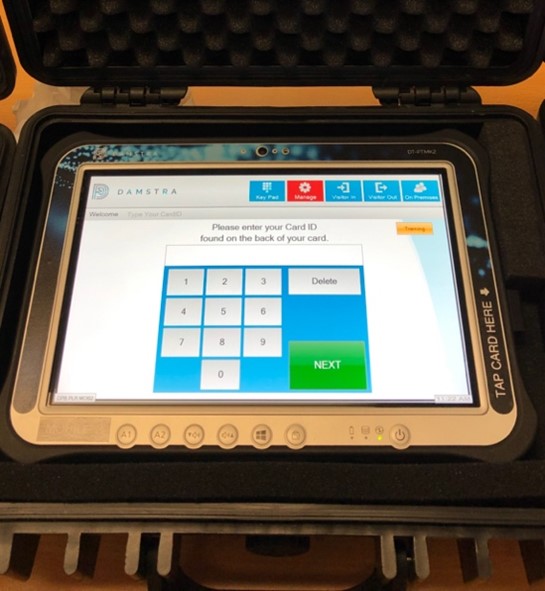 |
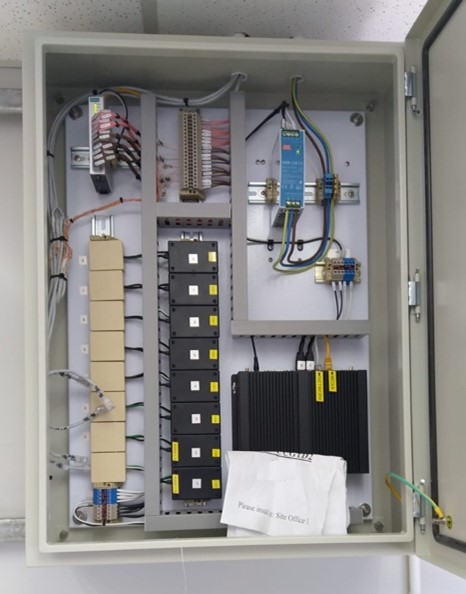 |
Power And Network
All Terminals must be provided with a clean & uninterrupted 240v mains power source, & should always be installed out of sunlight & away from weather affected areas.
Terminals will not operate without mains power, & they do not include battery backup (excluding the DT-PTMK2 Portable Tablet Terminal). An on-site UPS can be added to ensure power is maintained during an outage.
The hardware will also require an internet connection, provided either via the site’s local network, or VPN, or a 4G cellular connection (for Portable Terminals, or Terminals which are fitted with a cellular modem & antennas).
While they will allow limited use while offline, any data which is captured will not become available at the online Damstra System (TWMS, EPP, timecards, alerting, reporting etc) until the network connection has been restored.
Powering On
All Damstra Terminal models will auto-power on when connected to a power source. This includes Portable Terminals & also Access Control Terminals.
After switching on, the Terminal will begin to start up & will become ready for use after roughly 5 minutes.
If a Terminal does not auto-power on, please confirm that the Terminal/cabinet has mains power & is plugged in correctly. A qualified electrician may be required to assess the installation further.
A Terminal that has been left switched off, & later powered on, may detect that it has missed a System Update. If this happens, it will attempt to download the update before becoming ready. This process can take up to an hour, depending on network speed. To avoid delays, we recommend that Terminals are powered on in advance.
System Updates
Terminals will perform a daily update at 2 am local time. This update is important for the Terminal to maintain synchronization with the online Damstra System. Please ensure all Terminals are powered on & are able to communicate with the Damstra System during this time.
Please do not power off any Terminal which displays: “Starting Up, Please Wait…”
A Terminal that is unable to successfully complete this background update, due to being powered off / or while experiencing a network issue, will continue to attempt this update until roughly 6 am.
After this time, if still unsuccessful, the Terminal will then operate on the last complete update it has received,
& will automatically re-try the latest update on the following morning at 2 am.
Powering Off
To correctly shut down a Terminal, a site Supervisor or Manager should press the red “Manage” button on the touchscreen, select their name from the list, enter their 4-digit pin, and then select “Shutdown Terminal” from the Manage Menu.
Where absolutely necessary, a Terminal can be switched off by disconnecting it from the power source.
Though this is not recommended & the correct Manage Menu procedure (above) should be attempted first.
If A Damstra Terminal Has A Problem
- Ensure the unit has clean, filtered & uninterrupted mains power.
- Check that the network cable is connected. If a cellular Terminal, ensure there is strong 4G coverage available.
- Inspect cables connecting devices (Alcolizer, Thermal Camera, Printer, Card Reader) for pinches or poor joins.
- Allow the Terminal up to 1 hour to complete its start-up/update process.
- If an attached device is not functioning correctly (Alcolizer, Thermal Camera, Printer), please restart the device.
- Do not attempt to resolve an issue by restarting a Damstra Terminal- unless instructed by a Damstra Technician.
So that our Support Team can assist, please provide:
1 - Any affected user’s name or ID number.
2 - The date & approximate time of the incident.
3 - Terminal name (displayed at the bottom left corner of the screen) / or Terminal Serial (DT number on the cabinet).
And email service@damstratechnology.com with these 3 key details & a brief description of the issue at hand.

Comments
0 comments
Please sign in to leave a comment.