
 Thermal Camera - Power Cycle
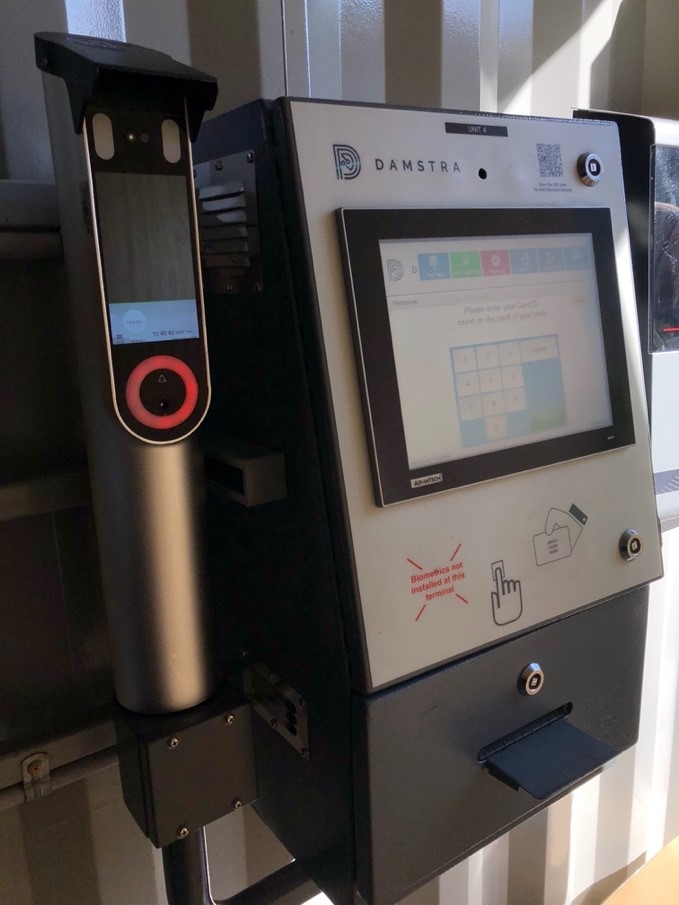
If a Thermal Camera is not registering or displaying any Temperatures upon the Thermal Camera’s screen, or allowing the Damstra Terminal to continue with the standard log in process, please unlock & open the Damstra Terminal cabinet door, locate the Thermal Camera power adapter & either switch off / or disconnect it from mains power –
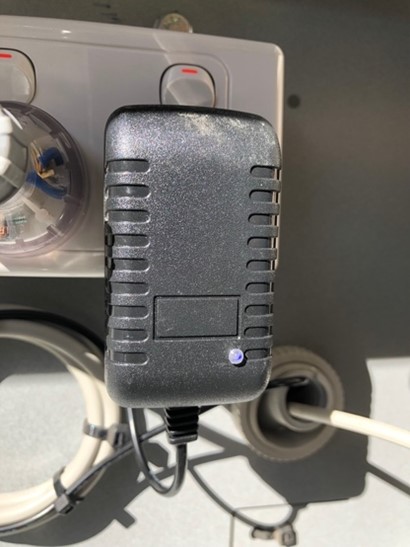
Please leave power disconnected / or switched off for 1 minute - Then power the Thermal Camera back on.
Allow a further 5 minutes for the Damstra Terminal & the Thermal Camera to finish background communications, without any user being within the framed sight of the Thermal Camera.
NOTE: Please do not attempt to resolve a Thermal Camera issue by restarting a Damstra Terminal- unless specifically instructed by a Damstra Technician.
Thermal Camera - Power & Network Troubleshooting
If a Thermal Camera is not powering on, please first check the power adapter (above).
Alternatively, please check the power plug which connects into the Thermal Camera itself.
This can be found behind the service plate, pictured below (highlighted in green).
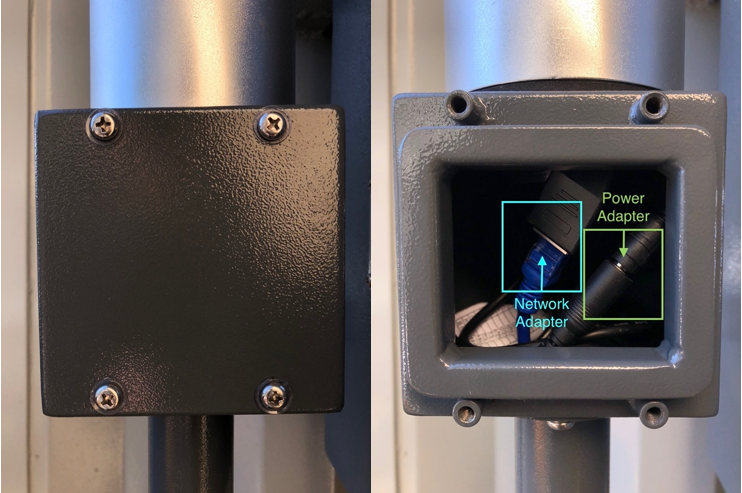
If a Thermal Camera is not communicating with a Damstra Terminal, or displays “NO CONNECT” upon the Thermal Camera screen, please check the network cable which connects into the Thermal Camera itself.
This can be found behind the service plate, pictured above (highlighted in blue).
Allow a further 5 minutes for the Damstra Terminal & the Thermal Camera to finish background communications, without any user being within the framed sight of the Thermal Camera.

Comments
0 comments
Please sign in to leave a comment.